> For the complete documentation index, see [llms.txt](https://docs.pline.ai/llms.txt). Markdown versions of documentation pages are available by appending `.md` to page URLs; this page is available as [Markdown](https://docs.pline.ai/features/end-to-end-data-encryption/enable-encryption-when-creating-a-new-workflow.md).
# Enable Encryption When Creating a New Workflow
Pline allows encryption to be configured directly during workflow setup, ensuring secure data handling from the start.
Here’s how to enable End-to-End Encryption during workflow creation:
### Step 1: Launch the Pline Extension and Build a Workflow
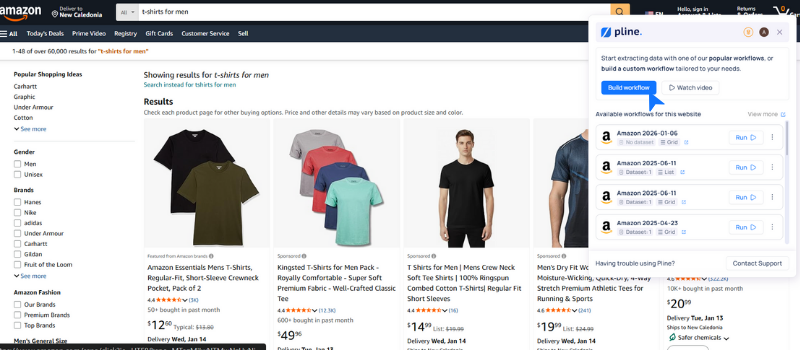
Open the **Pline Browser Extension**, build the workflow with the required **page type**, **data fields**, and **pagination**, then click **View Sample Data** to validate the extraction.
### Step 2: Enable End-to-End Encryption
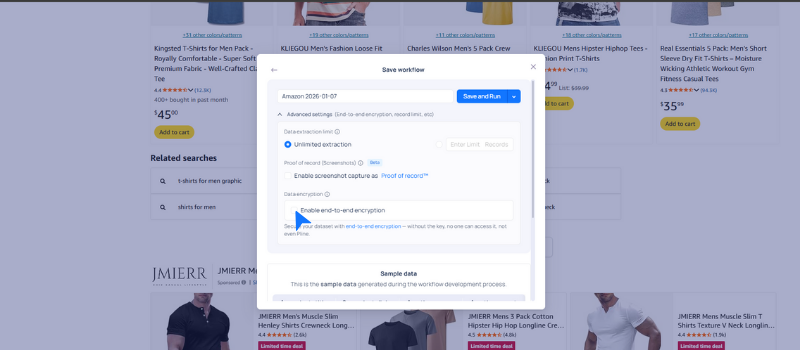
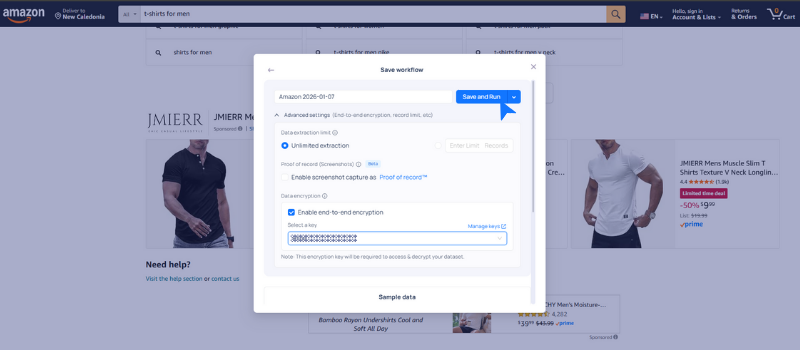
In the workflow setup screen, expand **Advanced Settings** and enable **End-to-End Encryption** before saving or running the workflow.
### Step 3: Generate Encryption Key
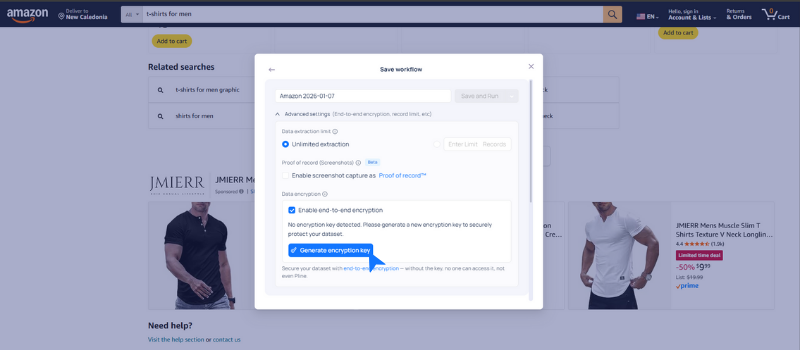
* Click **Generate Encryption Key** if you are using the encryption feature for the first time.
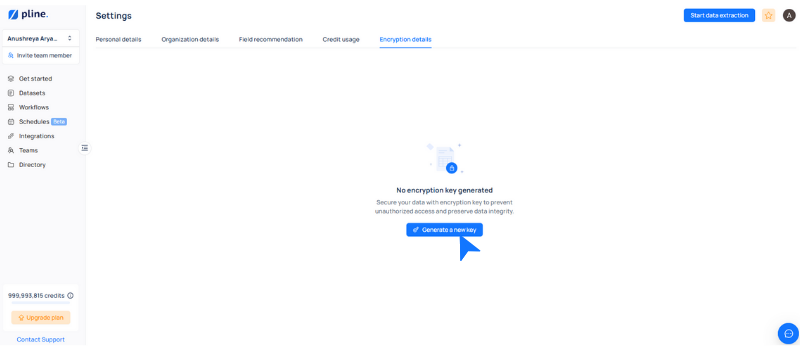
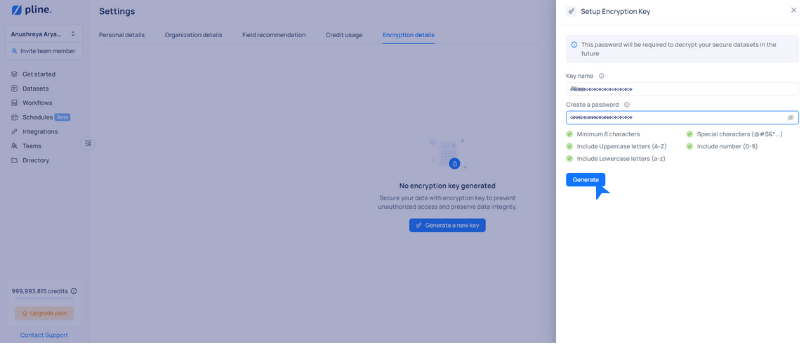
* Pline will automatically redirect you to the platform, and click **Generate New Key**.
* Enter a **key name**, set a **password**, and click **Generate** to create the encryption key.
{% hint style="danger" %}
Ensure that you store your encryption key securely. Pline does not retain your decryption key and cannot recover it.
{% endhint %}
### Step 4: Run the Encrypted Workflow
Select an encryption key from the dropdown and click **Save and Run** to start the workflow.
Your data will be extracted and stored in an encrypted format, ensuring complete privacy and security.