> For the complete documentation index, see [llms.txt](https://docs.pline.ai/llms.txt). Markdown versions of documentation pages are available by appending `.md` to page URLs; this page is available as [Markdown](https://docs.pline.ai/getting-started/extract-data-from-table-layout.md).
# Extract Data from Table Layout
**Table View Extraction** in Pline enables accurate collection of structured data from pages that present information in a row-and-column format, such as price lists, comparison tables, financial data, schedules, or directories.
Users can select the fields they want to capture, and Pline extracts this information consistently across all rows in the table. This method is ideal for gathering organized, tabular datasets quickly and with high precision.\
\
Follow these simple steps to extract data from a Table View using Pline.
{% hint style="success" %}
In this guide, we’ll demonstrate how to extract data specifically from **Yahoo Finance.**
{% endhint %}
### **Step 1: Create a Workflow**
Open the Pline extension and click **“Build Workflow.”**
### **Step 2: Select Page Type**
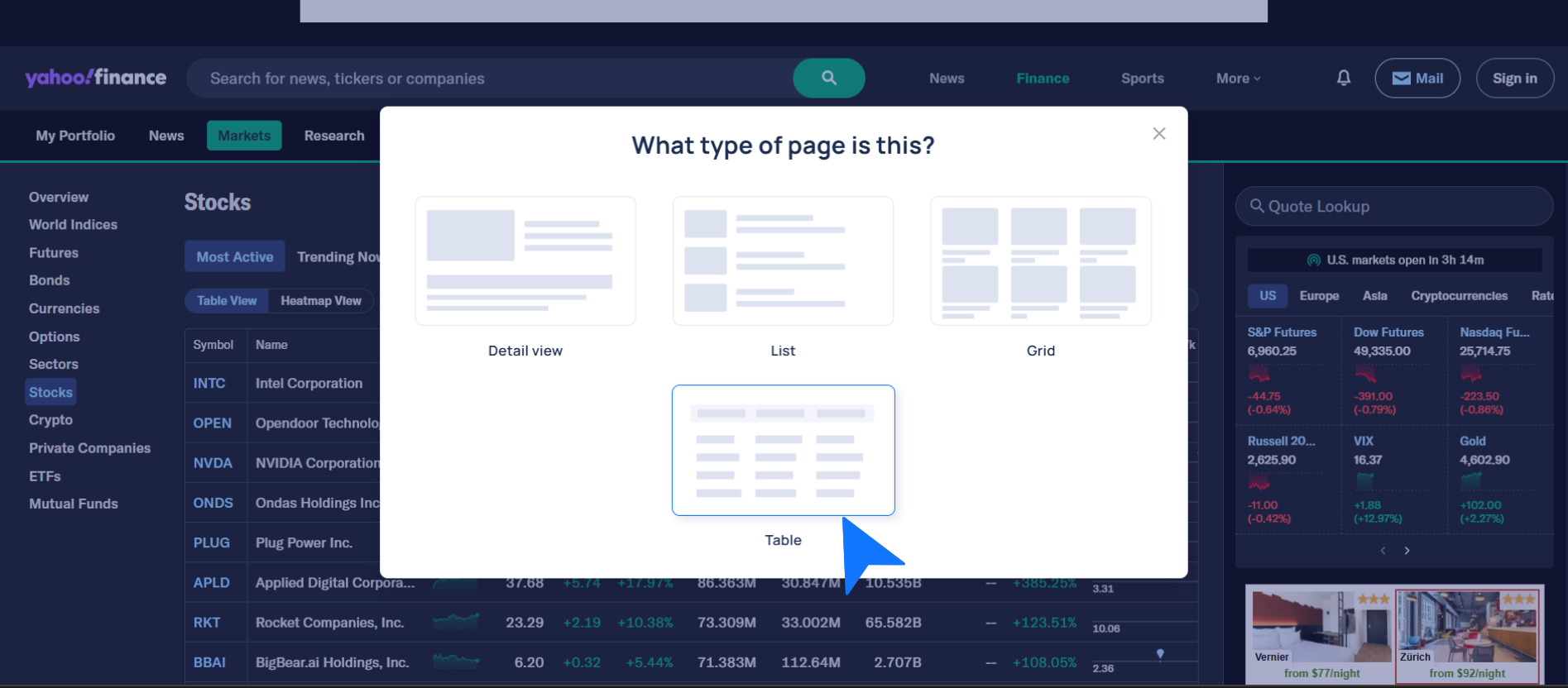
Choose **Table View** if the page presents data in a tabular format.
### Step 3: AI-Driven Field Detection
Pline uses AI to automatically detect and group similar items on the page and **preselect relevant fields**. If the grouping looks correct, click **“Yes, Looks good.”'**
{% hint style="info" %}
If that’s not the group you want to extract, you can try selecting the next group.
{% endhint %}
* You can easily add, edit, or remove fields based on your requirements.
{% hint style="info" %}
If any required data is missing, you can **manually add new fields** by selecting the required elements directly on the page.
{% endhint %}
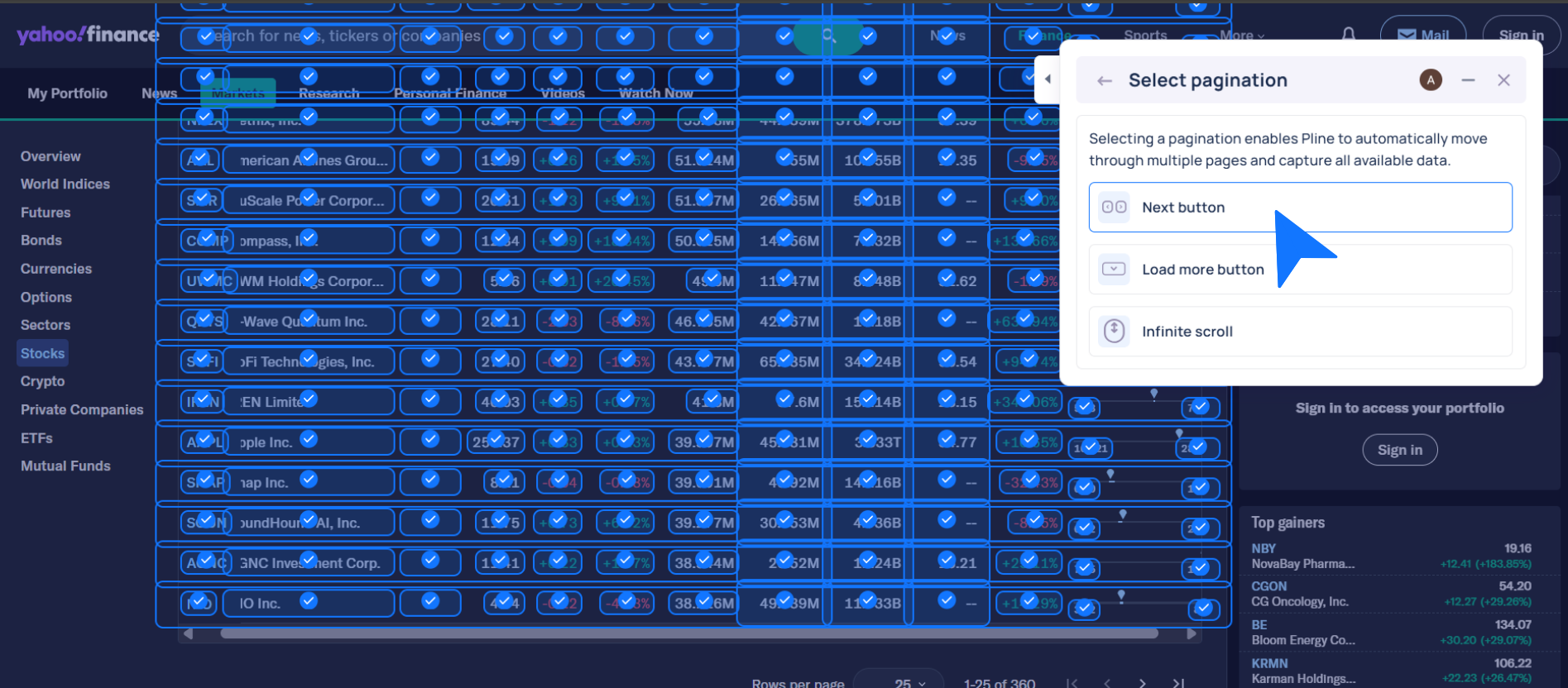
### Step 4: Select Pagination Type
* Select the appropriate pagination type, then locate it on the page and tag it.
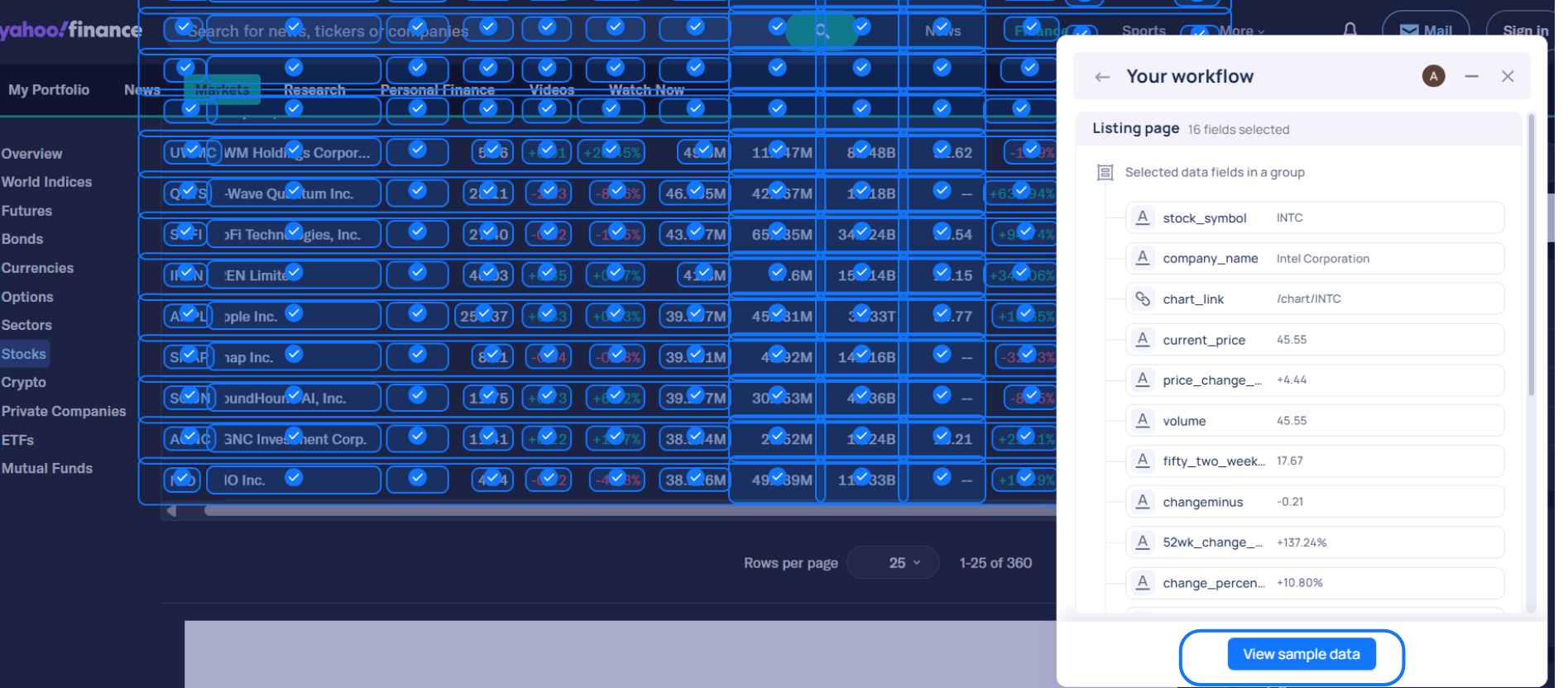
* Preview the sample data to ensure the correct items and fields are being extracted as expected.
### Step 5: Run the Workflow
Give your workflow a name and run it, or hover over the dropdown menu to save it for future use.
### **Step 6: Access and Export Your Data**
* Stop the extraction once you’re done.
* Download your dataset in **CSV** or explore further in Pline's Platform.


%20(4).png?alt=media&token=c5ce3077-4e4c-491f-a39c-a05009dc9eb6)
%20(5).png?alt=media&token=2f8b8715-0d79-4e69-b116-d4766d134db6)

%20(6).png?alt=media&token=170b5a74-0622-41df-b3bc-b2bfa4e50902)