> For the complete documentation index, see [llms.txt](https://docs.pline.ai/llms.txt). Markdown versions of documentation pages are available by appending `.md` to page URLs; this page is available as [Markdown](https://docs.pline.ai/getting-started/extract-data-from-detail-page.md).
# Extract Data From Detail Page
**Detail Page Extraction** in Pline enables precise collection of structured data from individual pages, such as product listings, job postings, or property details.
Users can select the specific elements to capture (e.g., title, price, rating), and Pline will extract these fields across all open detail pages. This approach is ideal for gathering unique, page-specific information accurately and efficiently.
Follow these simple steps to extract data from a Detail Page using Pline quickly.
{% hint style="success" %}
In this guide, we’ll demonstrate how to extract data specifically from **Amazon product detail pages.**
{% endhint %}
### **Step 1: Create a New Workflow**
* Open the Pline extension and click **"Build Workflow.”**
* Select **Detail View** as your page type.
{% hint style="info" %}
Choose the **"Detail Page"** when you want to extract information from an individual product page, job listing page, article page, etc.
{% endhint %}
### **Step 2: Select Fields to Extract**
Click on the data fields you want to extract from the page.
{% hint style="success" %}
Enter a name for each field, save it, and repeat for all fields.
{% endhint %}
### Step 3: Run the Workflow
Enter a workflow name and click **"Save & Run"** to start the extraction.
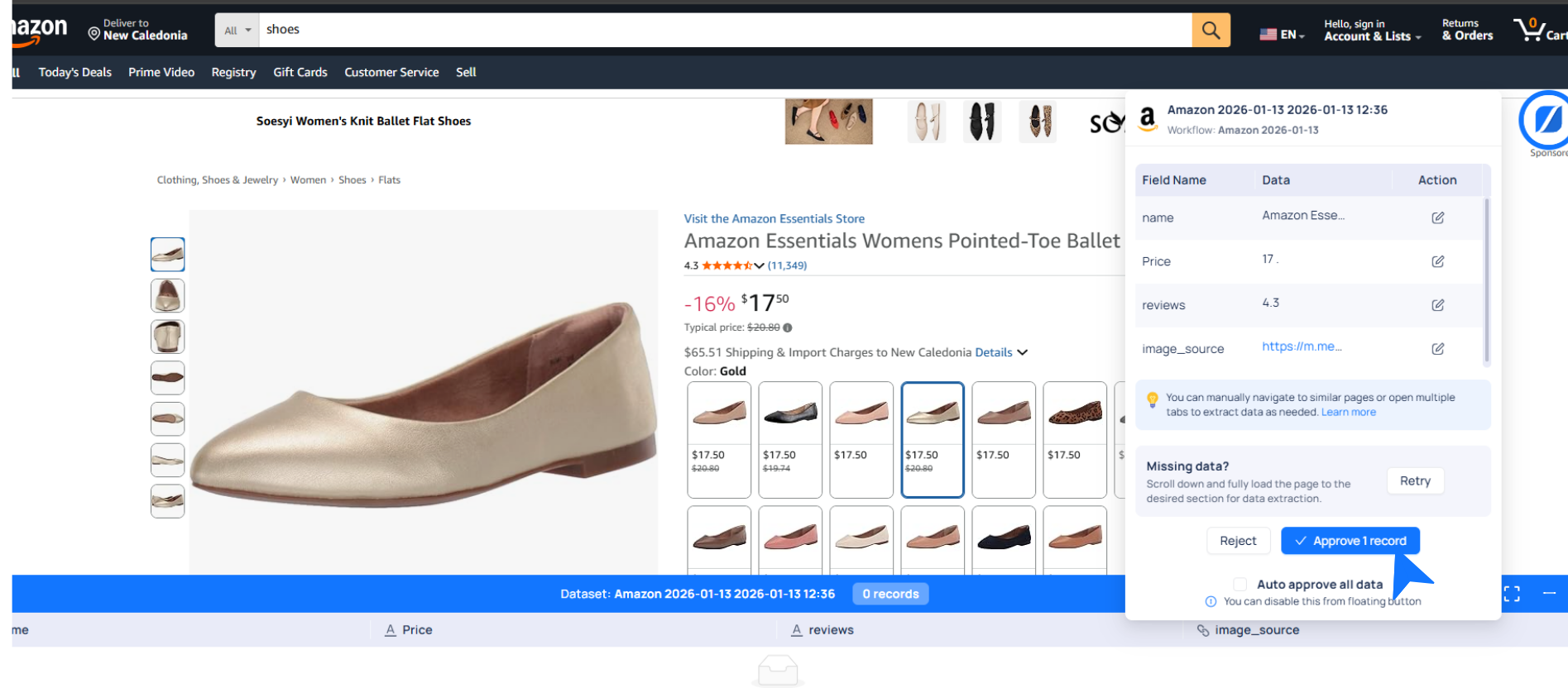
### **Step 4: Review and Approve Extracted Data**
After running the workflow:
* Review the extracted records in the preview panel.
* Click Approve if correct, or Reject to make changes.
### **Step 5: Extract from Multiple Pages**
Open multiple detail pages in separate browser tabs.
{% hint style="info" %}
Pline automatically extracts data from each open tab.
{% endhint %}
### Optional: Enable Auto-Approval
Turn on Auto-Approval to save records automatically as you browse.
### **Step 6: Access and Export Your Data**
* Stop the extraction once you’re done.
* Download your dataset in **CSV** or explore further in Pline's Platform.