> For the complete documentation index, see [llms.txt](https://docs.pline.ai/llms.txt). Markdown versions of documentation pages are available by appending `.md` to page URLs; this page is available as [Markdown](https://docs.pline.ai/features/team-collaboration/managing-team-members.md).
# Managing Team Members
Effective team management is key to seamless collaboration. Pline offers intuitive tools to help you manage your team efficiently.
## Managing team members
* **Access team management**
* Log in to the Pline Platform and navigate to the **Teams** tab.
* **View team details**
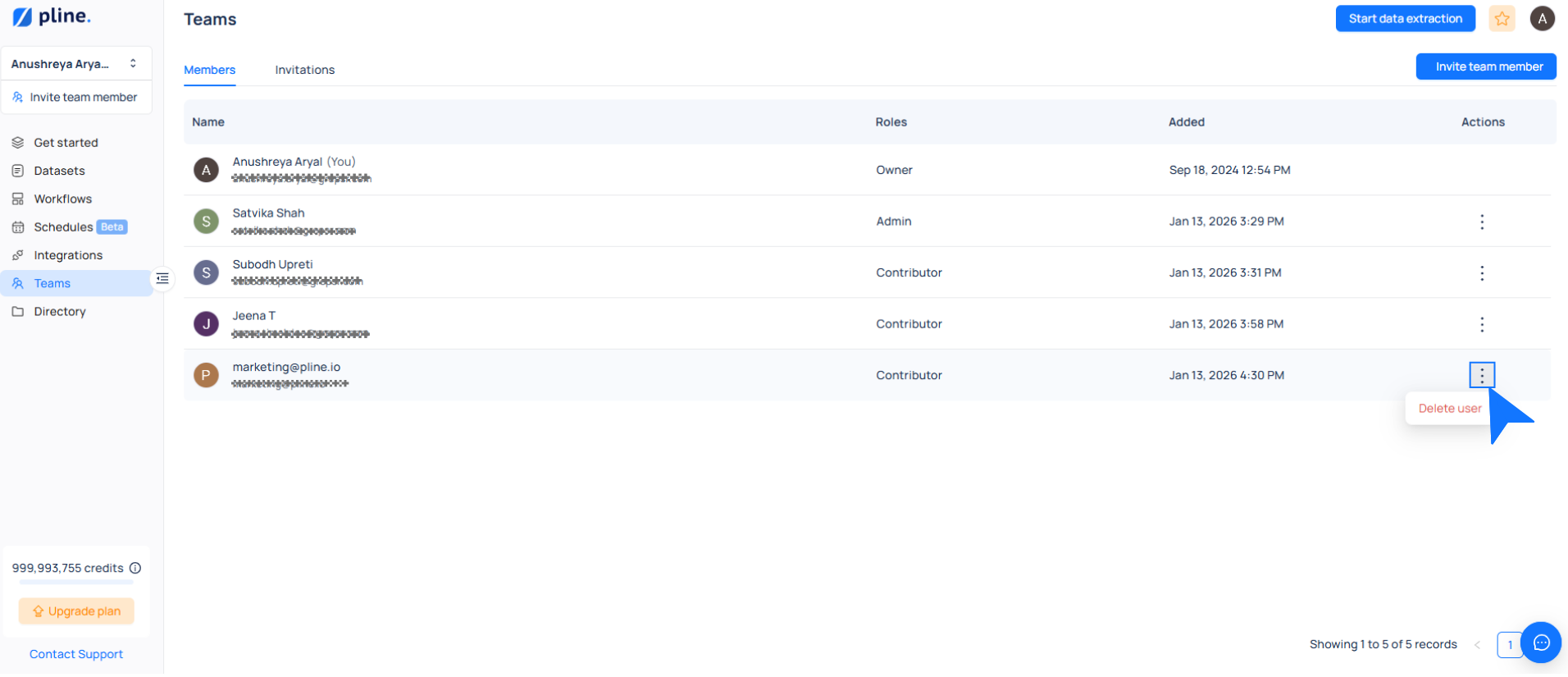
* This section provides a detailed overview of your team members, including:
* **Personal information**: Full name and email address.
* **Role**: Assigned role, either **Admin** or **Contributor**.
* **Date added**: When the team member joined your organization.
## Deleting team member
If a team member no longer requires access, you can remove them with the following steps:
* Find the team member you want to remove in the **'Teams'** tab.
* Click the **three-dot menu (⋮)** next to their name and select **"Delete User."**
* Review the confirmation pop-up and click **Remove User** to complete the action.
## Re-inviting a team member
Pline allows you to re-invite a team member **only if they have not yet accepted the original invitation**.
If an invited user hasn’t joined your organization (for example, if they missed the email), you can easily resend the invitation with the following steps:
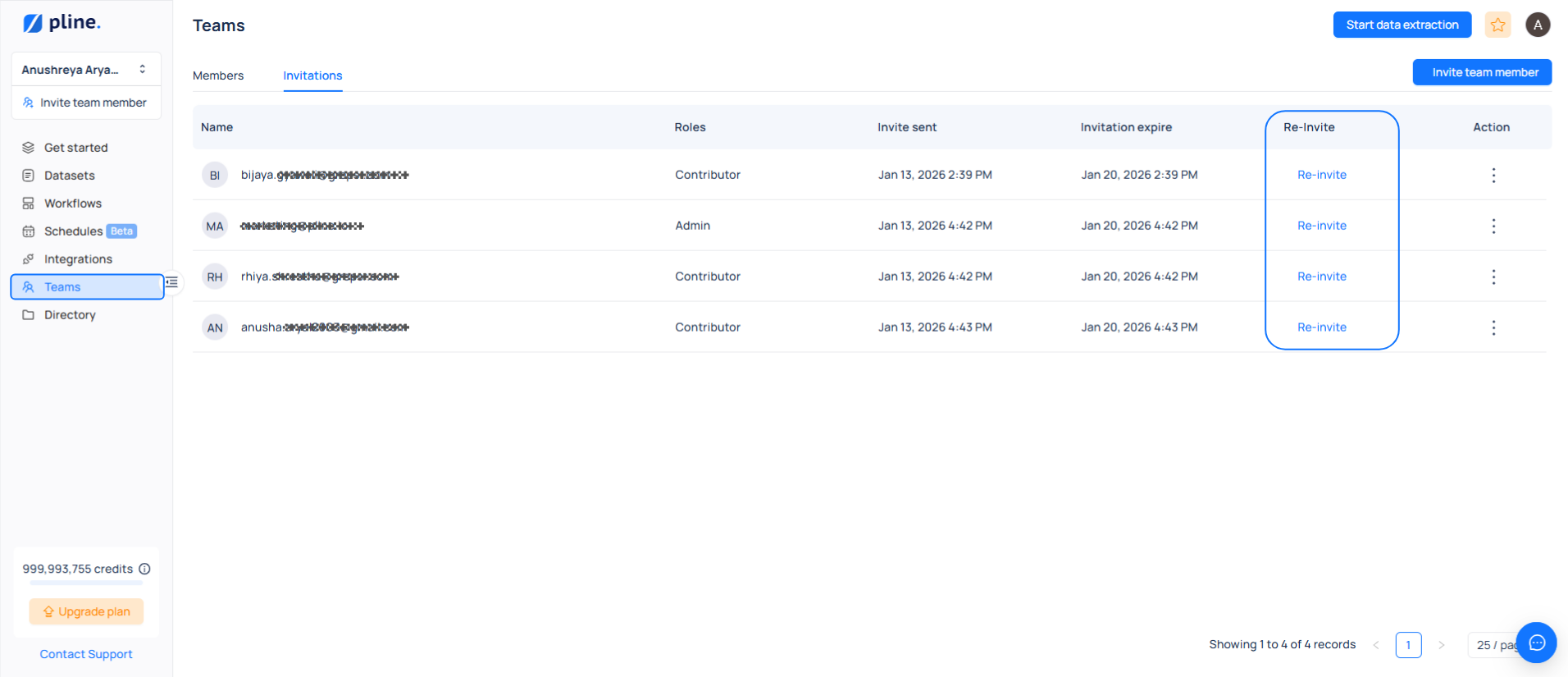
* Go to the **Teams** tab and open the **Invitations** section.
* Locate the pending invite in the list.
* Click **“Re-invite”** next to the user’s name.
A new invitation email will be sent, allowing them to join your organization.
{% hint style="info" %}
If a user has already been removed from the organization after joining, they are completely removed and must be invited again as a new member.
{% endhint %}
.png?alt=media&token=fc364e70-aa7a-4479-a68f-63e8089e261e)