> For the complete documentation index, see [llms.txt](https://docs.pline.ai/llms.txt). Markdown versions of documentation pages are available by appending `.md` to page URLs; this page is available as [Markdown](https://docs.pline.ai/features/integrations/setting-up-google-sheets-integration.md).
# Setting Up Google Sheets Integration
Pline’s Google Sheets integration lets you automatically sync your extracted data with a connected Google Sheet, enabling easier collaboration and sharing, all without manual data entry.
Here's how to set up a Google Sheets integration:
### Step 1: Access the Pline's Platform
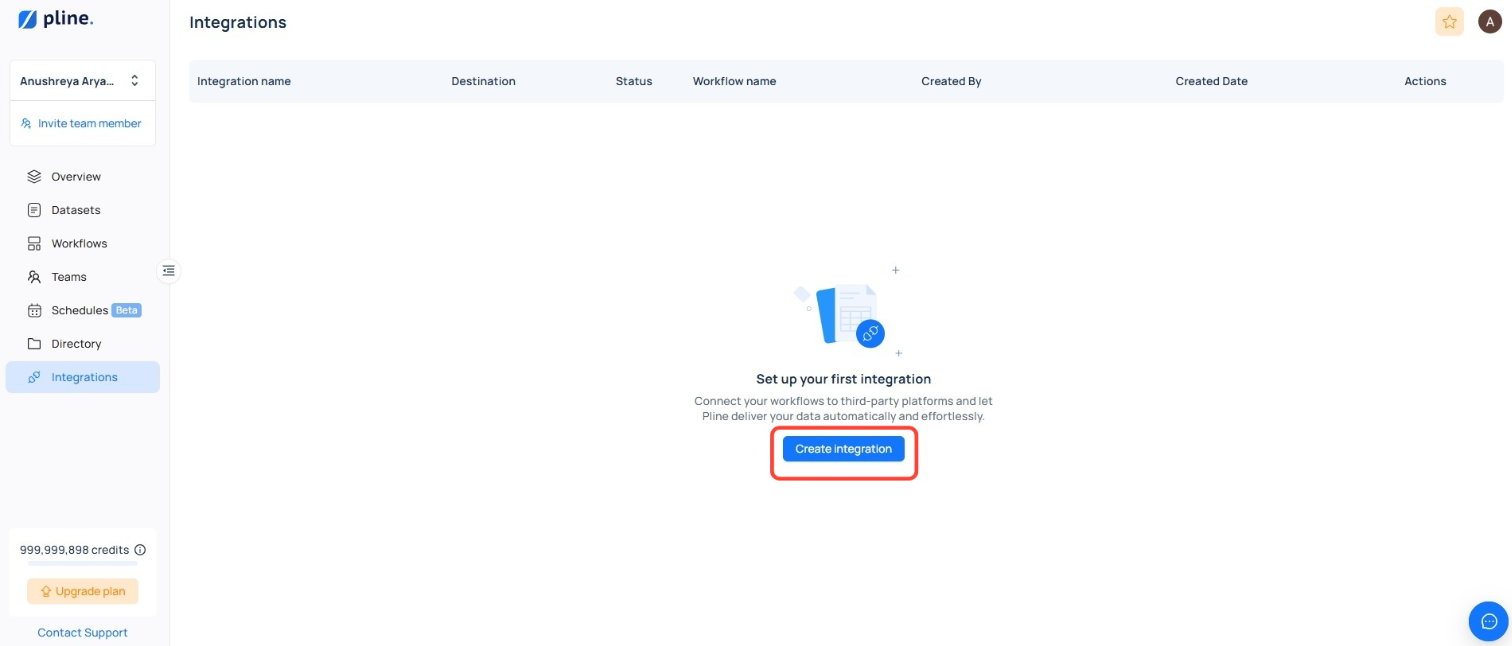
Navigate to the Integrations section and click on the "**Create Integration**" button.
### Step 2: Set Up the Dataset
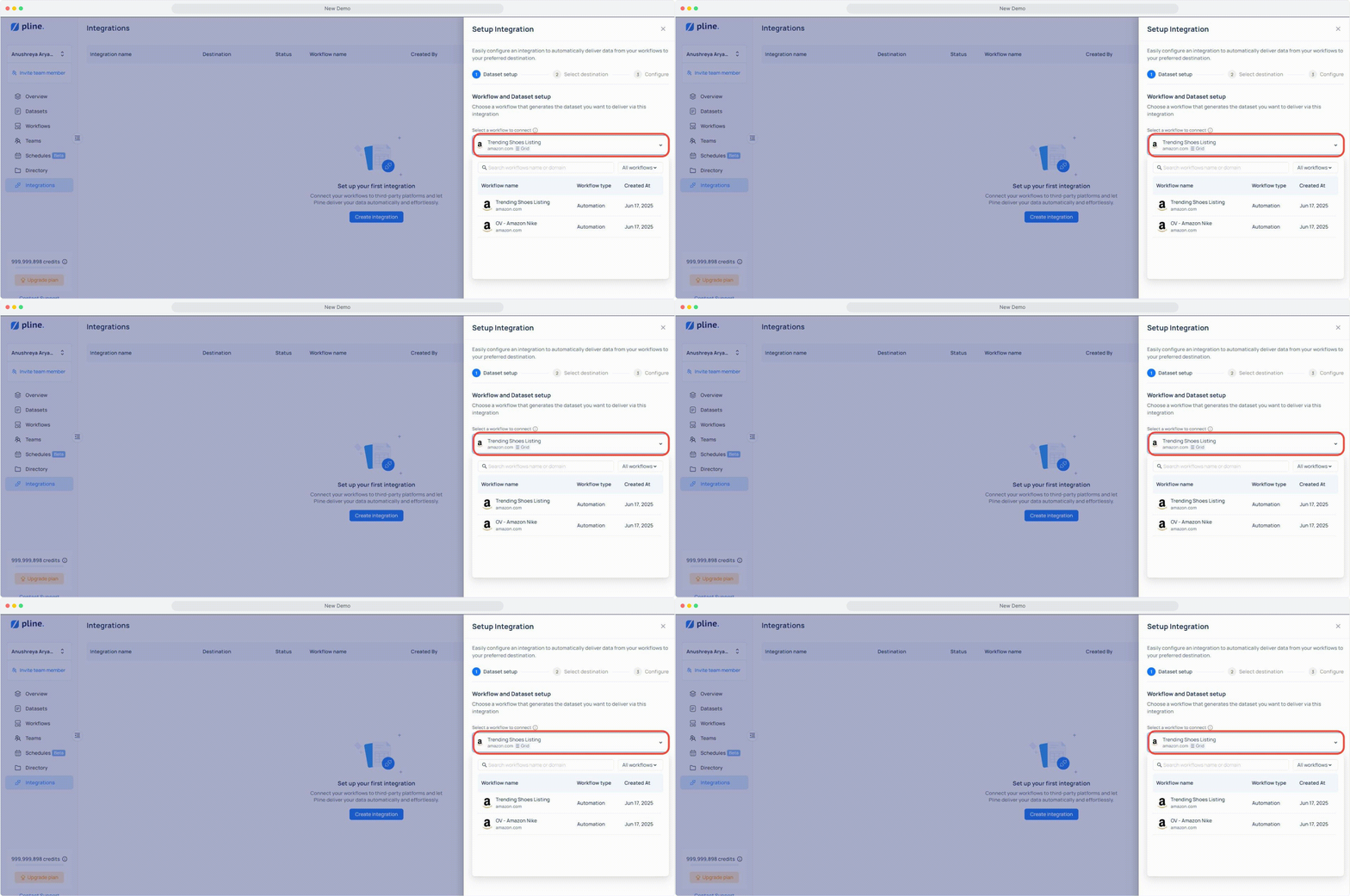
* Select the workflow or use the dropdown to choose the workflow you want to integrate.
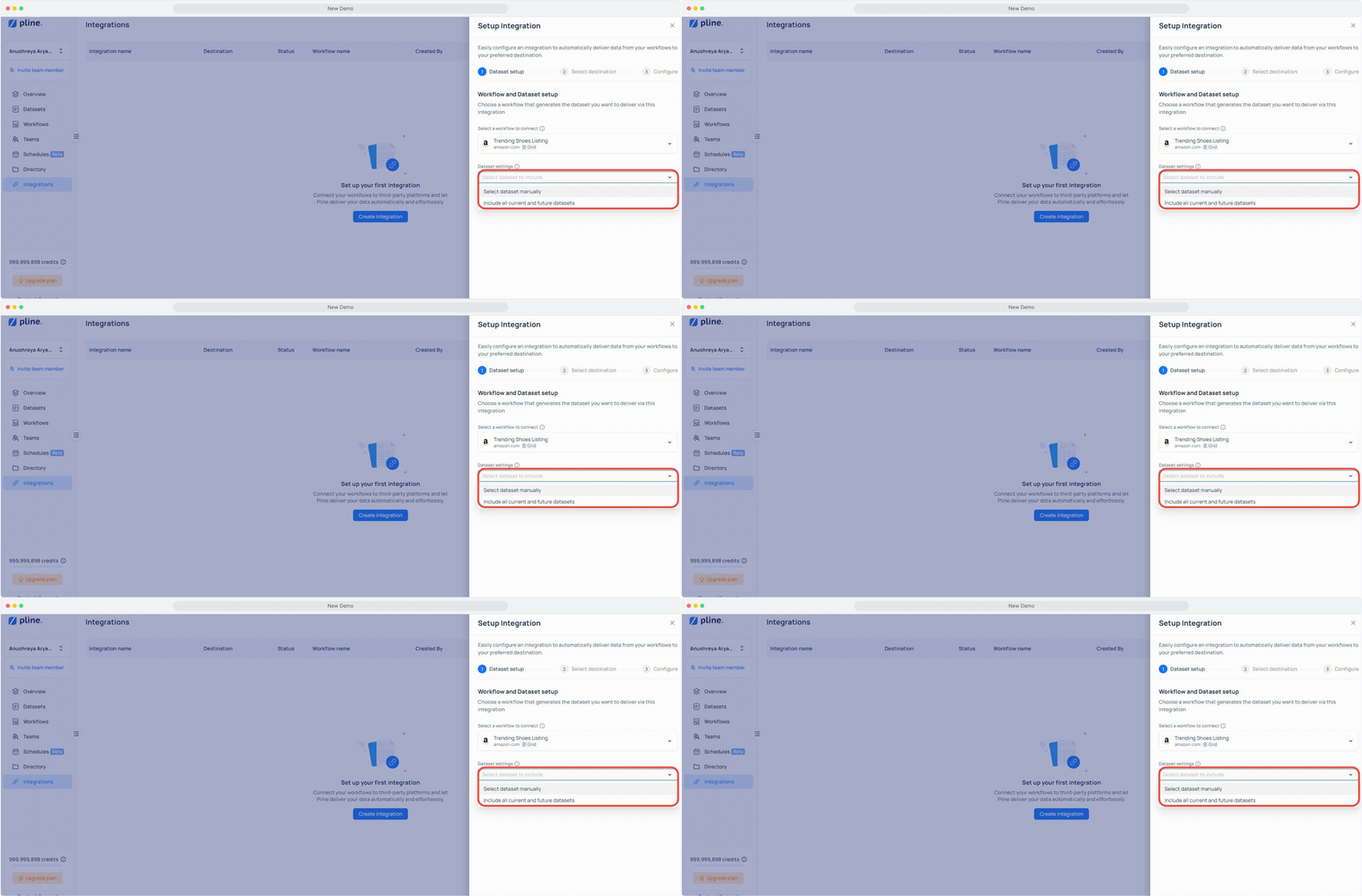
* Manage your dataset settings by either manually selecting specific datasets or automatically including all current and future datasets.
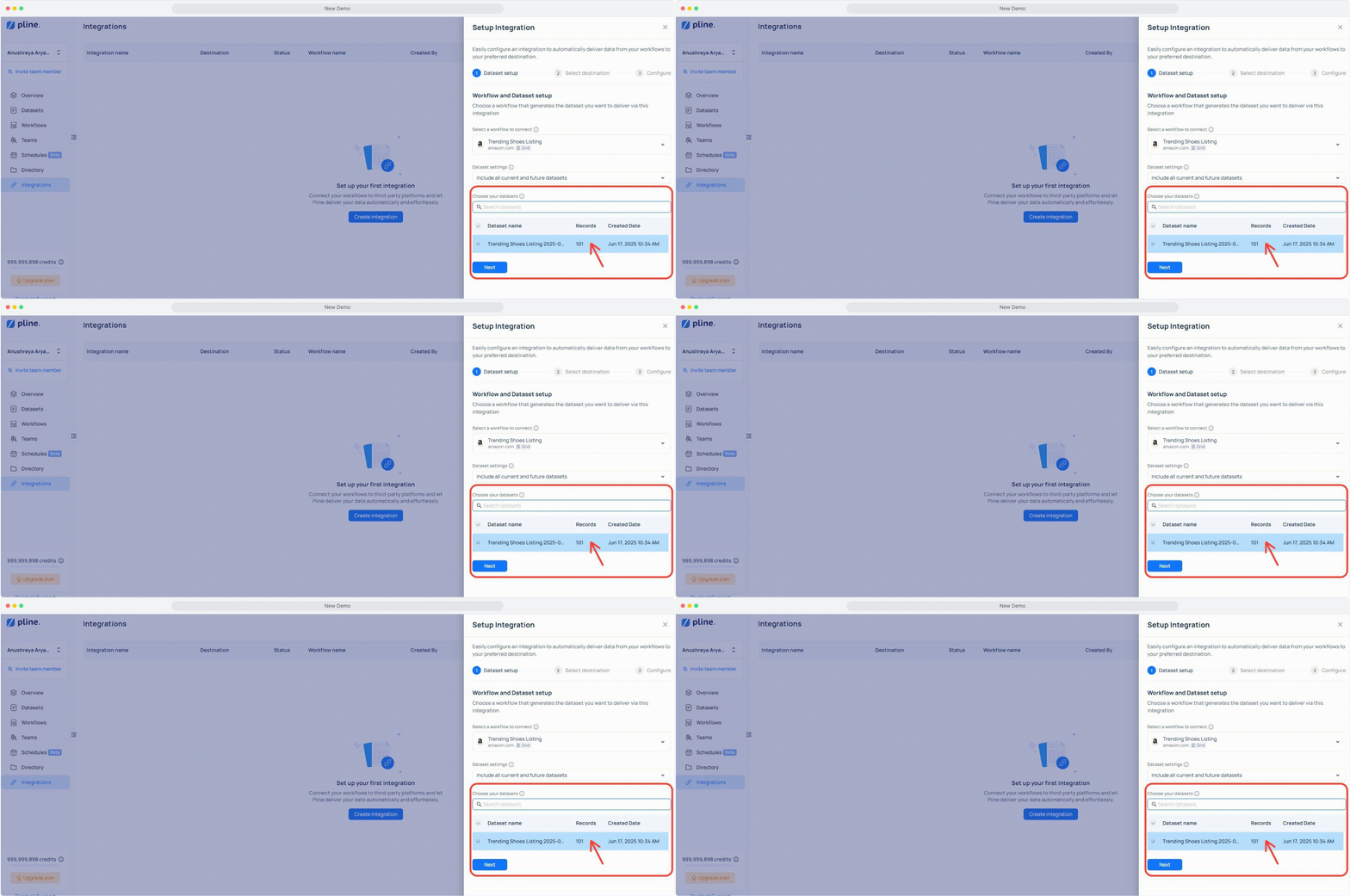
* Select the existing datasets you want to connect, then click **"Next".**
### Step 3: Configure Destination
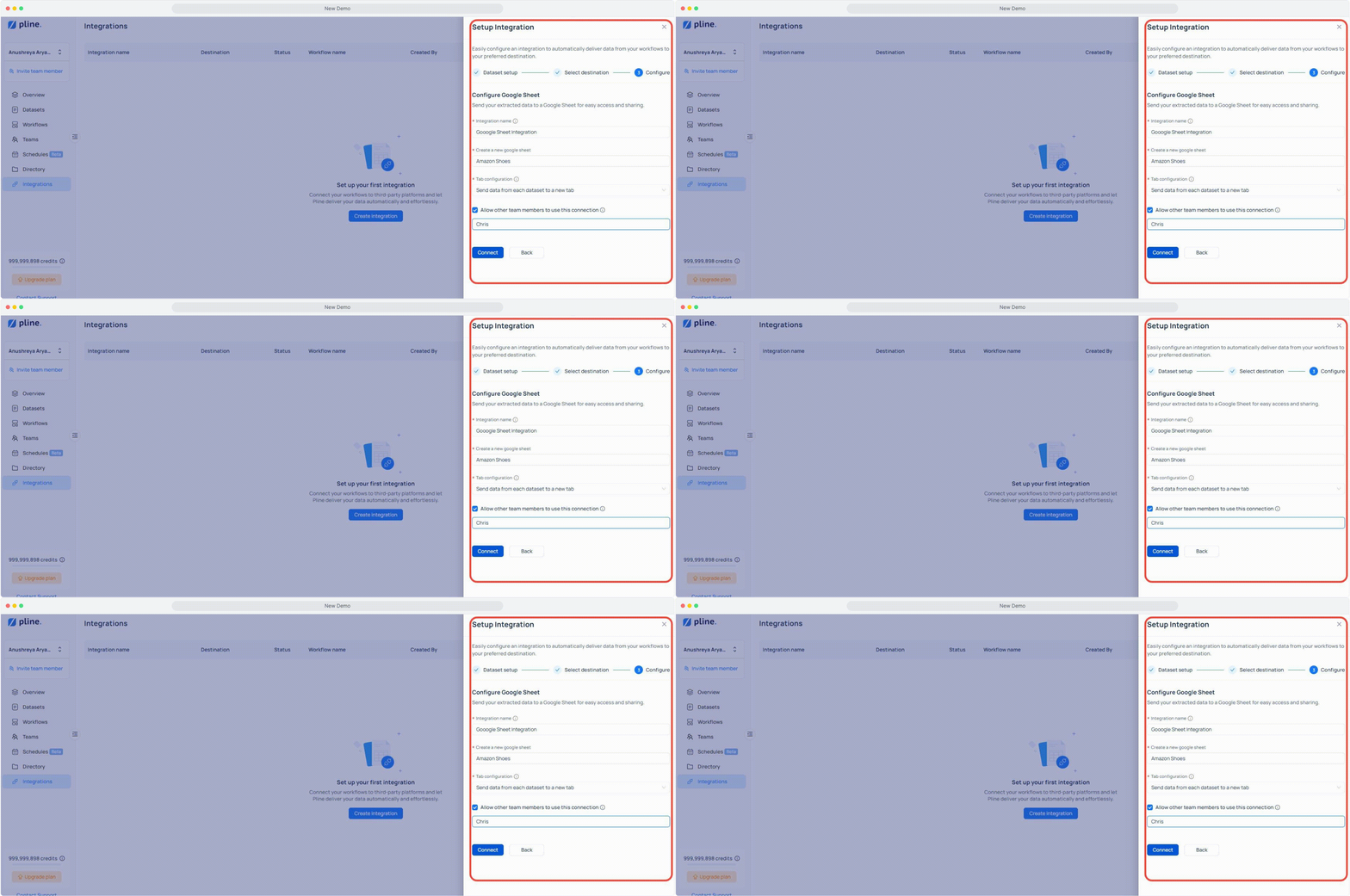
Select "**Google Sheets"** as the destination and complete the required configuration fields:
* **Integration Name:** A custom name to identify this integration.
* **Google Sheet Name:** The name of the Sheet where your data will be sent.
* **Tab Configuration:** Choose whether to combine all dataset data into one tab or send each dataset to a separate tab.
* **Integration Access with Team Members:** Enter the team member’s information to share access.
### Step 4: Connect to Google Sheets
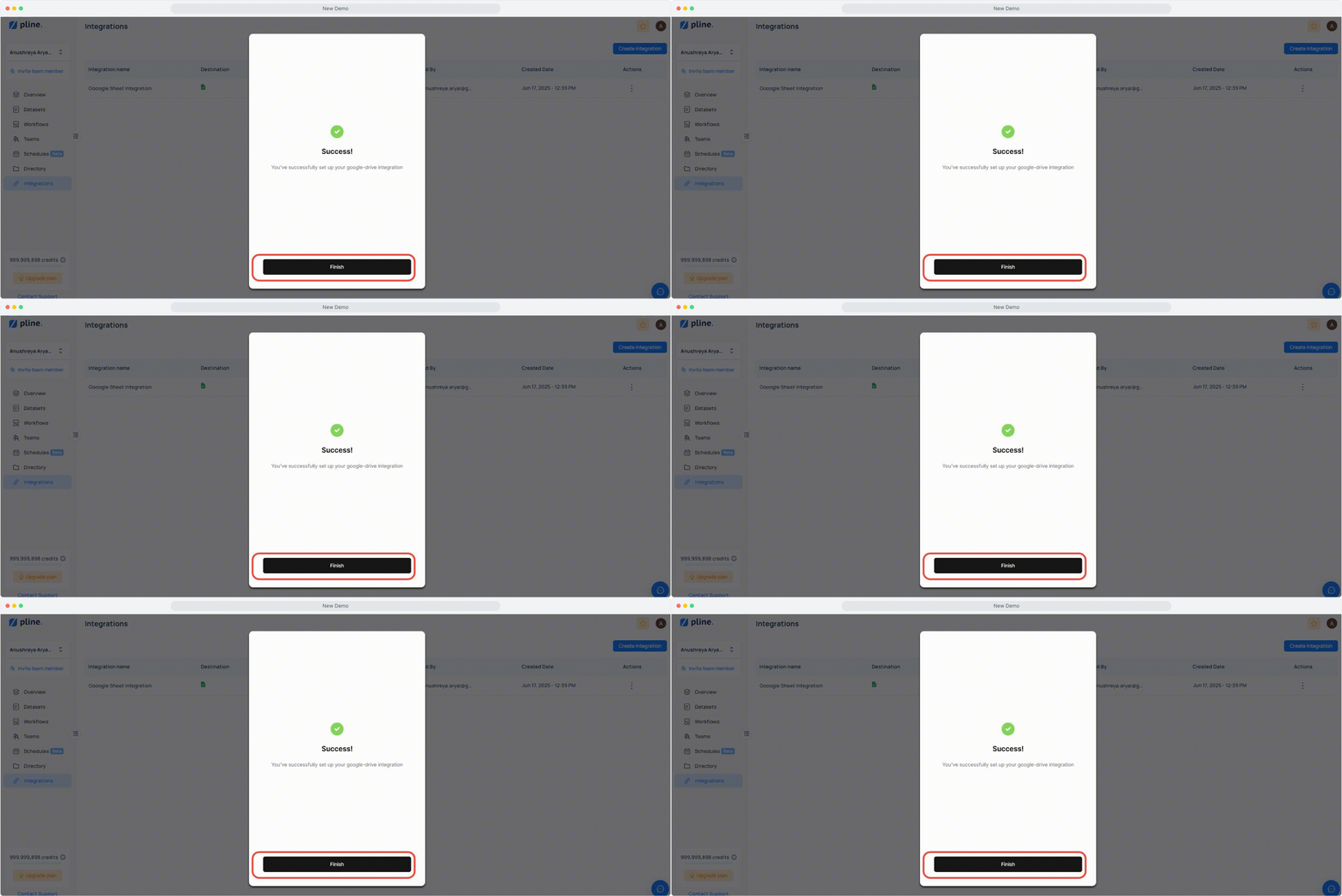
After configuring the Google Sheet integration, sign in with the Google account you want to use. Once connected, click "**Finish**" to complete the setup.